
To add reviews to a Shopify store, install a review app from the Shopify App Store, then open the theme editor and add the app's review widget and star rating blocks to your product template. Shopify no longer ships a review feature for the online store: its own Product Reviews app was retired, so product pages now depend on a third-party app, and the Shop app has a separate review system that you can sync with it. The setup is short. Getting customers to write the reviews is the real work, and Step 7 covers it.
Install a review app, add its blocks in Online Store > Edit theme, then switch on the Shop sync. Put the review widget below the product information, a star rating block under the product title, and the rating on collection pages. Import old reviews by CSV if you have them, test a product URL in Google's Rich Results Test, and automate the review request so the widget does not stay empty.
Reviewed by Nicolas Provost, founder of Reviewz.ai. Insights based on auditing 500+ Shopify review setups and analyzing public pricing, schema, and conversion data across the leading review platforms. LinkedIn
What happened to the Shopify Product Reviews app
For years the standard answer to "how do I add reviews on Shopify" was Shopify's own free Product Reviews app. That answer is out of date. In October 2023 a Shopify staff member confirmed in the Shopify Community that the app had been delisted and would be sunset, and a Shopify partner in the same thread gave May 6, 2024 as the day it would stop working. Its App Store listing now reads "This app is not currently available on the Shopify App Store", and the old help page redirects to the Shop product reviews documentation.
Two things replaced it:
- Third-party review apps for your online store. They collect the reviews and display them on your product pages through theme blocks.
- Shop product reviews for the Shop app. Customers who bought from you can rate a product from 1 to 5 stars in Shop, and those reviews are displayed on the product page inside the Shop app, not on your storefront.
Any tutorial that still tells you to install the Product Reviews app is out of date.
Three ways to show reviews on a Shopify store
| Method | Where the reviews appear | Use it when |
|---|---|---|
| Review app with theme blocks | Product pages, collection pages, homepage, and Google results when the markup is eligible | Always. This is the core setup. |
| Shop product reviews | Product pages in the Shop app, and on your store through a supported partner app | You sell through the Shop channel |
| Brand review widgets (Trustpilot, Google) | Homepage, footer, cart | You want store-level reputation next to product reviews |
Start with the first.
Step 1: choose and install a review app
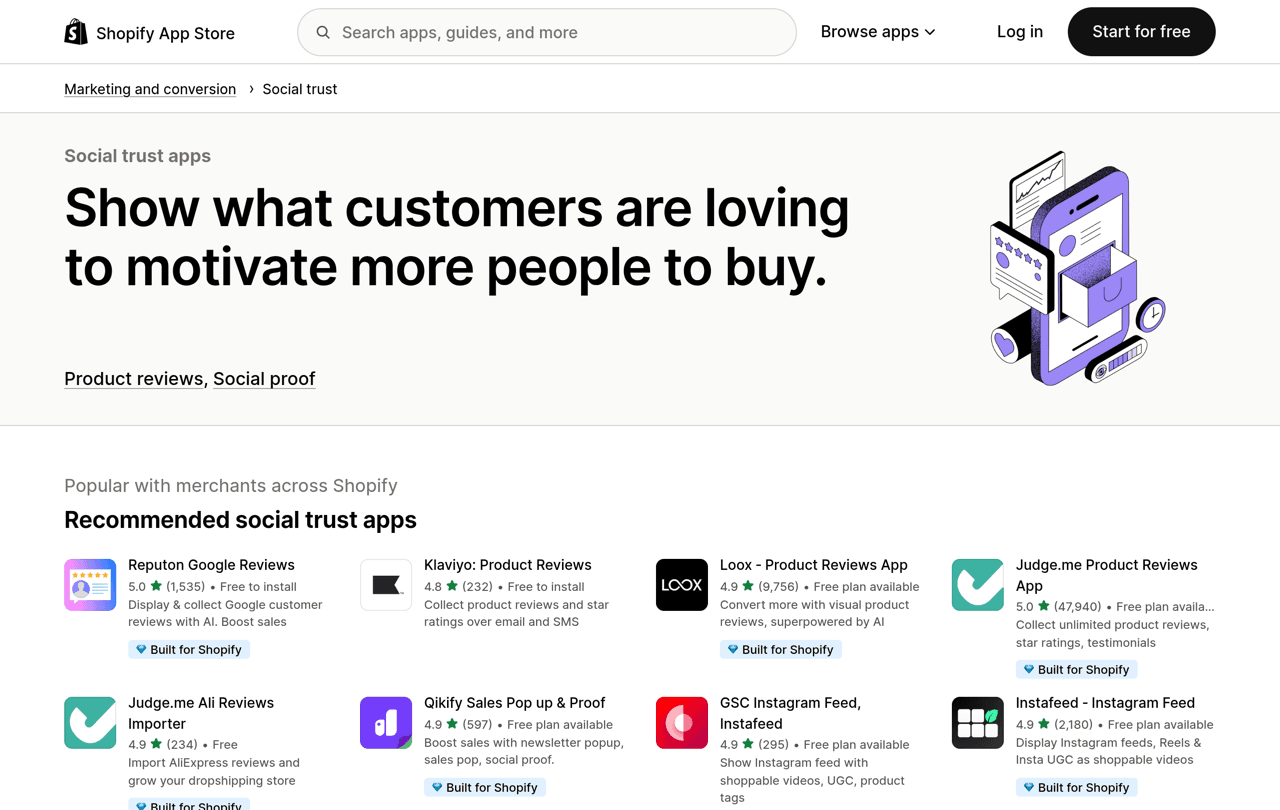
Open the product reviews category of the Shopify App Store and compare a few listings on five points:
- What the free plan really includes, because the limits differ from app to app.
- App block support. You want to place widgets from the theme editor without touching code.
- Photo and video reviews, if your products are visual.
- A review importer, if you are switching apps.
- Shop sync. Shopify lists five partner apps that can sync with Shop product reviews: Judge.me, Loox, Okendo, Stamped.io and Yotpo.
If you want a default, Judge.me is the usual starting point. Its App Store listing, checked on 4 October 2026, describes a Forever Free plan with unlimited product and store reviews, a review widget, a star rating badge and the Shop sync, and one paid plan at $15 a month. Our Judge.me review covers its limits, and the best free Shopify review apps and best Shopify review apps comparisons cover the alternatives.
Step 2: add the review widget to your product page
Installing the app does not always place the widget for you. Shopify's guide to extending your theme with apps describes the same path for every app:
- From your Shopify admin, go to Online Store.
- Find the theme you want to edit and click Edit theme.
- Use the page selector at the top of the editor to open your product template.
- In the sidebar, click Add section.
- In the Apps group, select your review app's widget. You can also type the app name in the search bar.
- Drag the new section to where you want it. Directly below the product information is the usual place.
- Click Save, then open a product on your live store to check it.
Two details to know:
- App blocks need a compatible theme. Online Store 2.0 themes, including Shopify's free Dawn theme, support them. On an older theme, the Apps group may not appear, and the app will either inject its code for you or give you a manual snippet to paste.
- Blocks belong to a theme, not to the store. Shopify warns that if you publish a different theme later, you have to re-activate your apps in the new one. If your reviews vanish after a redesign, this is almost always why.
Some apps also use an app embed, a script that loads on every page. In the theme editor, click the App embeds icon in the sidebar, switch the toggle on for your review app and save.
Step 3: add star ratings under the title and on collection pages
The full widget sits low on the page. The star rating near the product title is what shoppers see first, so add it too.
On the product page. In the theme editor, open the product template, click Add block inside the Product information section, and pick one of these:
- your app's star rating block, listed in the Apps group, or
- the theme's own Product rating block. Shopify's free Dawn theme includes one and notes in its settings that an app is required for product ratings.
The theme block works because of a shared standard. Shopify defines two standard metafields, reviews.rating and reviews.rating_count, and tells review apps to write the average rating and the number of ratings there. Any theme can then read them without loading the app's script.
Place the block just under the product title, and save.
On collection pages. Open your collection template, click the product grid section and switch on the Product rating setting if your theme has one (Dawn does). It reads the same metafields, so the stars appear on every product card that has reviews.
If you are building a custom section and only need the visual, our free CSS star rating generator outputs clean markup you can paste into a Custom Liquid block.
Step 4: sync your reviews with the Shop app
If the Shop channel is installed, your products can already be reviewed in Shop. Connecting it to your review app makes the two systems share reviews. Shopify's guide to syncing Shop product reviews with partner apps gives these steps:
- From your Shopify admin, go to Sales channels > Shop.
- Click Settings.
- In the Shop reviews section, tick Display reviews from partner apps in the Shop app.
Going the other way, reviews published in Shop are shared automatically with a supported partner app, and you decide in that app whether to publish them on your storefront. They carry a Verified by Shop badge that you cannot remove.
In the same settings section you can choose how long after delivery Shop asks for a review, anywhere from 1 to 180 days.
Step 5: import the reviews you already have
If you are moving from another app, you do not have to start from zero. Export a CSV from the old app, then use the importer of the new one. Our Yotpo to Judge.me migration guide shows the process end to end.
Two rules apply to imported reviews:
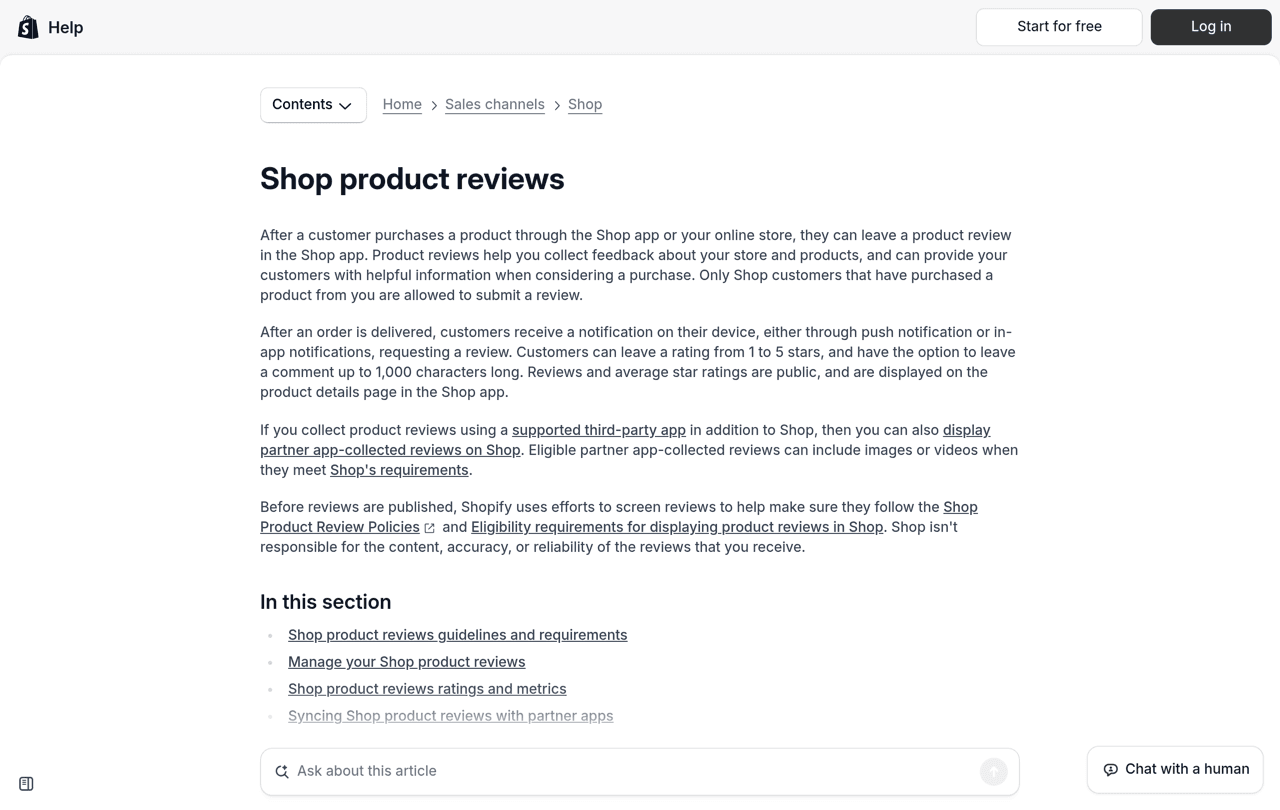
- They will not appear in Shop. Shopify states that reviews migrated between apps with a CSV, or uploaded from a CSV, are not eligible for display in the Shop app. Only reviews linked to a customer ID, an order ID and a product ID qualify.
- They must be real. The FTC rule on fake reviews and testimonials prohibits reviews from people who did not have actual experience with the product, and reviews written by company insiders without a clear disclosure. Writing the first few reviews yourself falls on the wrong side of that line.
Step 6: check that Google can read your stars
Most review apps add Product structured data with an aggregate rating to your product pages. That markup is what makes a page eligible for stars in Google results. Paste a product URL into Google's Rich Results Test to confirm it is detected.
Google's review snippet documentation sets three conditions that matter for a store:
- The rating and reviews you mark up must be visible to shoppers on that same page.
- You should not aggregate reviews or ratings from other websites into your markup.
- Reviews of your own business, marked up as Organization or LocalBusiness on your own site, are not eligible for stars. Product reviews are.
If the test shows nothing, or shows duplicate markup, our review schema markup guide explains the fix, and the review schema generator builds valid JSON-LD for a single product.
Step 7: fill the widget
A review widget that says "No reviews yet" on every product does not help anyone. The first handful of reviews matters most: research from Northwestern University's Spiegel Research Center found that the purchase likelihood for a product with five reviews is 270% greater than for a product with none, and that the benefit of each additional review shrinks quickly after that. We go through the thresholds in how many reviews a product needs.
Three things move the number:
- Ask every customer, after delivery. Most review apps send an email request automatically. Check the delay, because a request that arrives before the parcel does gets ignored.
- Use the wording that works. Our guide on how to ask customers for reviews has copy-paste templates for email, SMS, WhatsApp and packaging inserts.
- Add a second channel. A single email only reaches the customers who open it. Our review submission rate benchmarks show what a realistic response looks like.
This is where Reviewz fits next to your display app. It asks every customer for a review after an order over WhatsApp, SMS and email. Customers who rate 4 or 5 stars are sent to Trustpilot, Google or Judge.me, and the others get a private feedback form so your team can respond. Because Judge.me is one of the destinations, the reviews it brings in show up in the widget you placed in Step 2. Each review platform has its own invitation rules, so read the ones that apply to the destination you choose before you switch routing on. Reviewz is free to start and the paid plans are on the pricing page.
Your review widget is installed. Now fill it: ask every customer over WhatsApp, SMS and email.
Install Reviewz on ShopifyOther places to add reviews
- Homepage. In the theme editor, open the home page, click Add section, and choose your app's carousel or featured reviews block in the Apps group.
- A dedicated reviews page. Go to Online Store > Pages, create a page called Reviews, then in the theme editor create a page template that contains your app's all-reviews widget and assign it to that page. Link it from the footer.
- Brand reviews. If you collect store reviews on Trustpilot, its widgets belong on the homepage and near the cart. The Trustpilot Shopify integration guide covers the setup.
- The parcel. A QR code on an insert card takes the customer straight to the review form. The review QR code generator makes one for free.
A star rating is one trust signal among several. For payment icons, guarantees and where to place them, see our guide to trust badges for Shopify.
Troubleshooting
| Problem | Likely cause | Fix |
|---|---|---|
| Reviews disappeared after a theme change | App blocks and embeds are set per theme | Re-add the blocks and re-enable the app embed in the new theme |
| No Apps group when you click Add block | The section or the theme does not support app blocks | Use Add section instead, or follow the app's manual install |
| Theme Product rating block shows nothing | The app is not writing the standard rating metafields, or the product has no reviews | Check the app's settings, or use the app's own star block |
| Reviews missing in the Shop app | They were imported by CSV or did not meet Shop's eligibility rules | Only reviews tied to a customer, an order and a product are displayed |
Mistakes to avoid
- Following an old tutorial. Anything that mentions the Shopify Product Reviews app predates its shutdown.
- Running two display apps at once. You get two widgets and two sets of markup on the same product page.
- Publishing only the good reviews. The FTC rule also bars a business from presenting the reviews on its site as all or most of the reviews it received when it has suppressed some because of their rating.
- Stopping after installation. The widget is the container. The request flow is what fills it.
- Leaving reviews unanswered. A reply under a review is read by the next shopper. Our guide on how to respond to positive reviews has examples you can copy.
Related reading: Shop app reviews, Review cards.
FAQ
Does Shopify have a built-in review feature?
Not for the online store. Shopify retired its own Product Reviews app, so product pages need a third-party review app. The Shop app has its own review system, Shop product reviews, which you can sync with a supported partner app.
How do I add product reviews on Shopify for free?
Install a review app with a free plan, add its review widget and star rating blocks in the theme editor, and turn on its review request email. Judge.me, for example, lists a Forever Free plan with unlimited reviews on the Shopify App Store.
Where do I add the review widget in the theme editor?
Go to Online Store, click Edit theme, open your product template, click Add section and pick the widget in the Apps group. For the star rating, click Add block inside the Product information section and place it under the title.
Can I add Google or Trustpilot reviews to my Shopify store?
Yes, as brand-level proof on your homepage or cart, using the platform's widget or an app. Do not mark them up as product ratings: Google says not to aggregate reviews from other websites in your structured data.
Why are my reviews not showing on my Shopify product page?
The most common cause is a theme change: app blocks are set per theme and must be re-added. Otherwise check that the block is saved in the product template you actually use and that the app embed is switched on.
Will my reviews show as stars in Google?
They can. Your review app needs to output Product structured data with an aggregate rating, and the rating has to be visible on the page. Test a product URL in the Rich Results Test. Google decides whether to show the stars.

About the author
Nicolas Provost · Founder of Reviewz.ai
Nicolas built Reviewz.ai after auditing 500+ Shopify review setups while running Kanal (WhatsApp marketing for Shopify). He has spent four years inside the Shopify ecosystem and writes about review collection, brand trust SEO, and the actual economics of running customer-feedback flows on ecommerce sites.
